
To reconcile donations with QuickBooks, compare the gifts in your donor database with the deposits and revenue in your books every month, explain every difference, and fix errors where they started. Eight repeatable steps keep development and finance working from the same numbers.
It's the board meeting. Development reports $412,000 raised year to date. Finance reports $396,500. Both teams did their jobs, both numbers are defensible, and the board now trusts neither one.
This almost never means someone made a big mistake. It usually means two systems are telling slightly different stories and nobody has lined them up in a while.
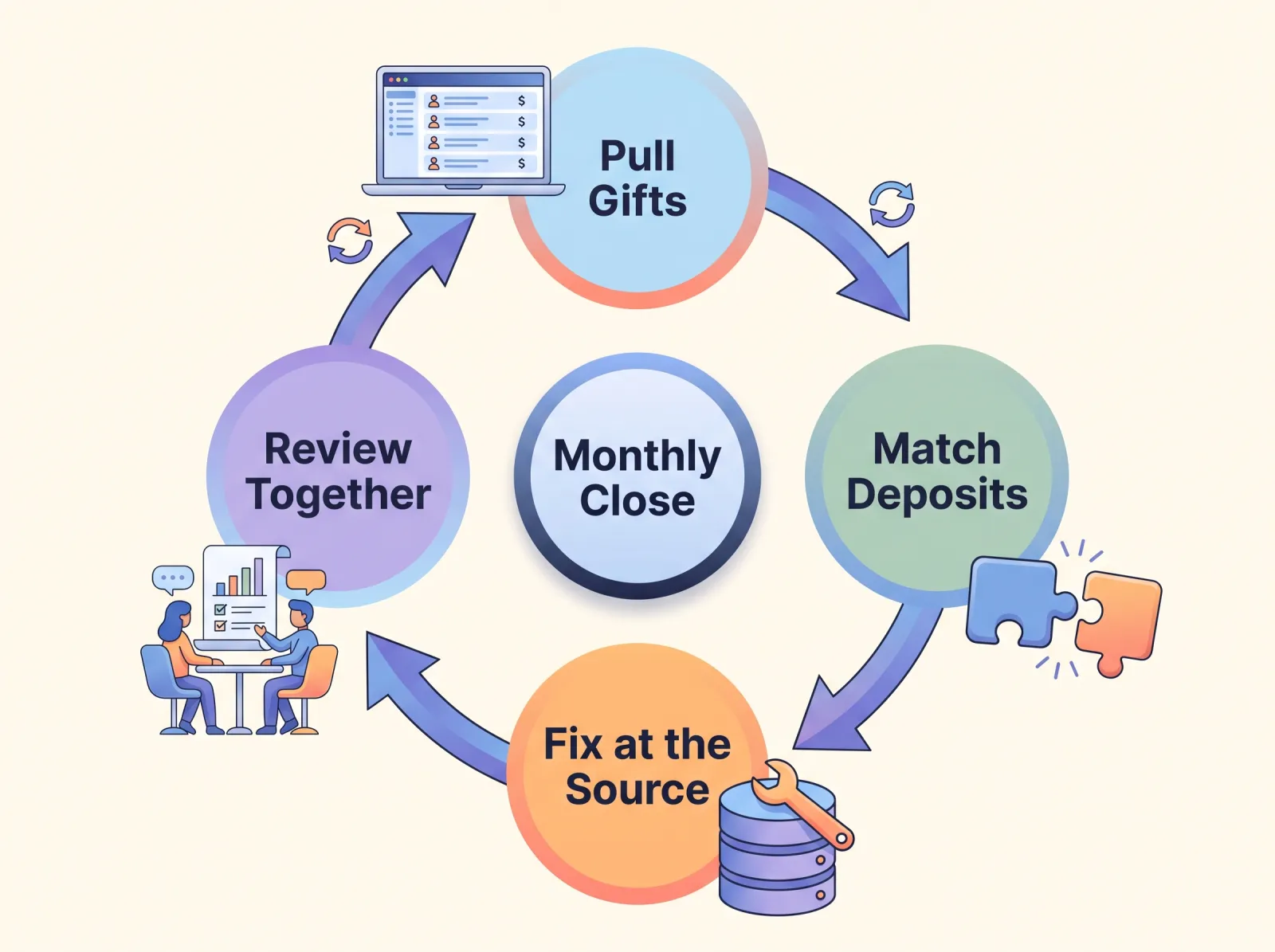
To reconcile donations with QuickBooks, pull your gifts from your donor database each month, separate gross gifts from processing fees and net deposits, match every deposit to the bank, confirm funds and campaigns are coded the same way in both places, and review the differences together before you close the month. The checklist below walks through each step.
What is donation reconciliation?
Donation reconciliation is the process of proving that your donor database and your accounting system describe the same money.
Each system has a different job. Your donor database, or nonprofit CRM, tracks relationships: who gave, how much, to which fund, in response to which campaign. Your accounting system tracks money: when it reached the bank, which account it belongs in, and what it cost to collect. Reconciliation is where those two views meet.
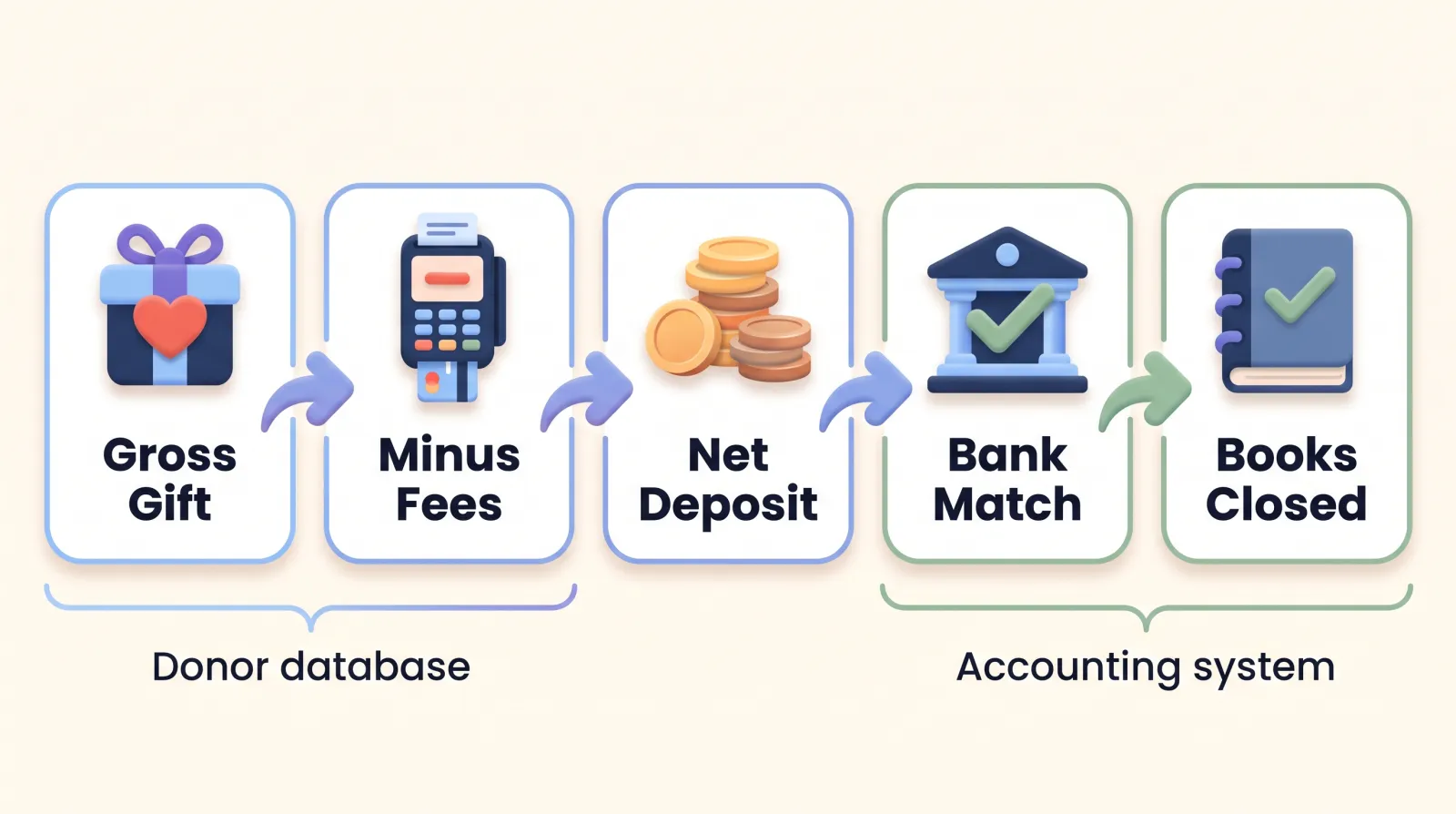
That's also why two different totals can both be "right." A gift made on December 31 and deposited on January 3 lands in different months. An online gift shows up in your database at full value and in your bank minus processing fees. A pledge counts as a commitment in one place and a receivable in the other.
Why reconcile every month instead of at year-end?
Because a variance from March is easy to explain in April and nearly impossible to explain in December. People remember why a check was held, a gift was refunded, or a sponsor paid late. Eight months later, nobody does.
A monthly close also strengthens your internal controls. The ACFE's 2026 Report to the Nations found that nonprofit organizations reported a median loss of $69,000 per occupational fraud case, and a lack of internal controls was the primary weakness in 33 percent of all cases studied. Regular reconciliation is one of the easiest controls a growing team can run.
What should you set up before your first monthly close?
Do this once, write it down, and the monthly routine gets dramatically faster.
- Agree on gift types. Individual gift, recurring gift, grant payment, sponsorship, event ticket, in-kind gift, pledge payment. Both teams should use the same list and the same definitions.
- Map funds and campaigns to your books. Build a one-page mapping sheet that shows which donor database fund or campaign corresponds to which QuickBooks account or class.
- Decide how you'll record fees. Many nonprofits record the full gift as contribution revenue and the processing fees as a separate expense, so the receipt, the database, and the books all show the same gift amount. Confirm the approach with your accountant and apply it consistently.
- Separate the roles. Ideally, the person who enters gifts isn't the same person who records deposits, and a second person reviews the match.
- Keep donor detail where it belongs. Your accounting system needs the financial picture, not every donor's personal information. Sensitive relationship notes should stay in your donor database.
- Pick a close date. For example, the tenth business day of the following month. Put it on both teams' calendars.
How do you reconcile donations with QuickBooks each month?
Run these eight steps in order. The first time through may take a few hours. After a couple of months, it usually goes much faster.
Step 1: Lock the month in your donor database
Make sure every gift received during the month is entered, dated correctly, and assigned to a batch. Close the batches. Checks that arrived on the last day of the month but won't be deposited until next week should carry the right gift date and a note.
Step 2: Pull a gift report by type, fund, and campaign
Run a report of every gift dated in the month, totaled by gift type, fund, and campaign. Save it with the month in the file name so you have an audit trail. This is your development-side number.
Step 3: Separate gross gifts, fees, and net deposits
Pull the payout reports from each payment processor you use. For online gifts, you're looking for three numbers: the gross amount donors gave, the fees the processor kept, and the net amount deposited.
Here's a quick example. Donors gave $10,000 online in March, and your processor kept $320 in fees, so your bank received $9,680. Your donor database should still show $10,000 in gifts. Your books should show $10,000 in contribution revenue and $320 in fee expense. If either side shows $9,680 as revenue, you've found your first variance.
Step 4: Match every deposit to the bank
Now work batch by batch. Every deposit in your bank account should trace back to a batch of gifts, and every closed batch should trace forward to a deposit. Processor payouts often bundle several days of gifts into one transfer, so match payouts to the date range they cover, not to individual gifts.
Anything that won't match goes on a variance log with the amount, the date, and a one-line description. Don't force it to balance. Write it down and keep going.
Step 5: Confirm restricted gifts landed in the right fund
For every gift with a donor restriction, check three things: the restriction is documented (an award letter, pledge agreement, or donor note), the gift is coded to the matching fund in your donor database, and finance recorded it to the same fund or class. A restricted gift coded as general support is one of the most common, and most consequential, errors you'll catch.
If fund tracking is new to your team, our primer on nonprofit fund accounting explains how restricted dollars should flow.
Step 6: Split event revenue and tag every campaign
Event income needs extra care because part of a ticket price usually isn't a contribution. When a donor pays more than $75 and receives something in return, like a dinner, IRS Publication 1771 requires you to provide a written disclosure with a good-faith estimate of the value of what they received. The penalty for missing it is $10 per contribution, up to $5,000 per event or mailing.
So record each ticket in two parts: the fair market value of the benefit and the deductible contribution above it. Then code the event's direct expenses (venue, catering, entertainment) to the same event or class in your books. Now "what did the gala actually net?" is one report away instead of a week of digging.
That detail pays off at tax time, too. Organizations that file Form 990 must complete Schedule G, Part II when fundraising event income and event contributions together exceed $15,000. That schedule breaks out the two largest events with gross receipts over $5,000 individually and groups the rest.
The same tagging applies to campaigns and appeals. If every gift carries a campaign code in your donor database and the matching class in your books, you can compare cost and revenue for each appeal without rebuilding anything.
Step 7: Chase every variance and fix it at the source
Work through the variance log. For each item, find the cause and fix it where it started. If a gift was entered with the wrong date in your donor database, correct the gift record, don't just post an adjusting entry in QuickBooks. Otherwise the same mismatch reappears in every report that touches that gift.
Duplicate donor records and inconsistent entry habits cause a surprising share of variances. If you see the same problems month after month, it's time for a broader data hygiene pass and a few minutes with your team's duplicate merge process.
Step 8: Review together and sign off
Hold a 30-minute review with someone from development and someone from finance. Walk through the gift totals, the deposit match, and the variance log. Development often knows the story behind a number (a sponsor who paid early, a donor who asked to split a gift) that finance can't see from the bank statement.
When both sides agree, sign off, close the month, and send a one-paragraph summary to your executive director. That summary becomes your running record of a clean, controlled process.
Why don't donor database totals match QuickBooks?
When the numbers disagree, the cause is usually one of these:
- Timing. The gift date and the deposit date fall in different months.
- Gross versus net. One system recorded the gift after fees and the other recorded the full amount.
- Pledges versus payments. A pledge was recorded as a gift in one system and as a receivable in the other.
- Refunds and failed payments. A refund, chargeback, or declined recurring gift was updated in one place but not the other.
- In-kind gifts. Non-cash gifts were logged in the donor database but never recorded in the books, or the reverse.
- Soft credits and matches. A soft credit was counted as revenue, or a matching gift was entered twice.
- Coding errors. The gift went to the wrong fund, campaign, or account.
- Duplicates. The same gift was entered twice, often under two records for the same donor.
Keep this list next to your variance log. After a few months, you'll recognize most mismatches on sight.
How DonorDock makes the monthly close lighter
DonorDock's QuickBooks Online integration syncs received gifts into QuickBooks Online as sales receipts automatically every hour. You can record processing fees on a separate sales receipt, so revenue and fees stay cleanly apart for Step 3. If your accountant would rather match the bank, a prebuilt Integration Builder scenario creates one deposit each time a gift batch closes instead. Reusable gift filters, based on criteria like a custom field value, let you hold back gifts that need finance's review until they qualify.
On the development side, DonorDock's gift reports filter by gift date, batch, fund, campaign, appeal, payment type, and gift type, pull in-kind gifts and soft credits out on their own, and export to a spreadsheet. That covers Steps 2, 5, and 7 without building anything new. One DonorDock customer, Growing Futures, reports that monthly finance reconciliation now takes about a minute instead of a couple of hours.
Start with one clean month
Don't try to reconcile all of last year at once. Pick next month, run the checklist, and log every variance, even the ones you can't solve yet. By the third month, the log gets shorter and the review meeting gets easier.
Those clean monthly numbers do more than satisfy your auditor. They're what let you walk into a major gift meeting or a grant application with confidence. To see how, read what funders look for in nonprofit financial statements. If your finance and development teams are still debating tools, our guide to aligning finance and fundraising on your CRM can help, and our year-end close tips pick up where this monthly routine leaves off.
Ready to spend less time matching numbers and more time with donors? Book a demo and we'll show you how the monthly close works in DonorDock.