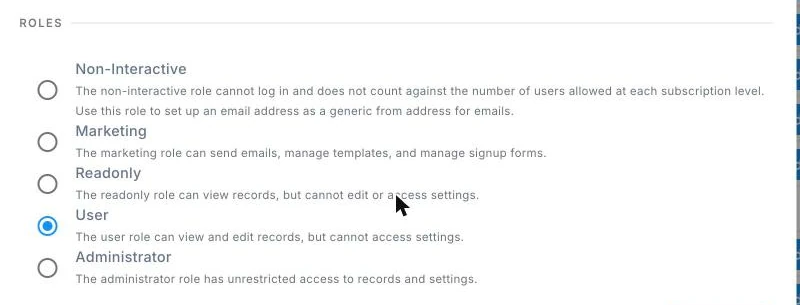
Every user gets one of five roles:
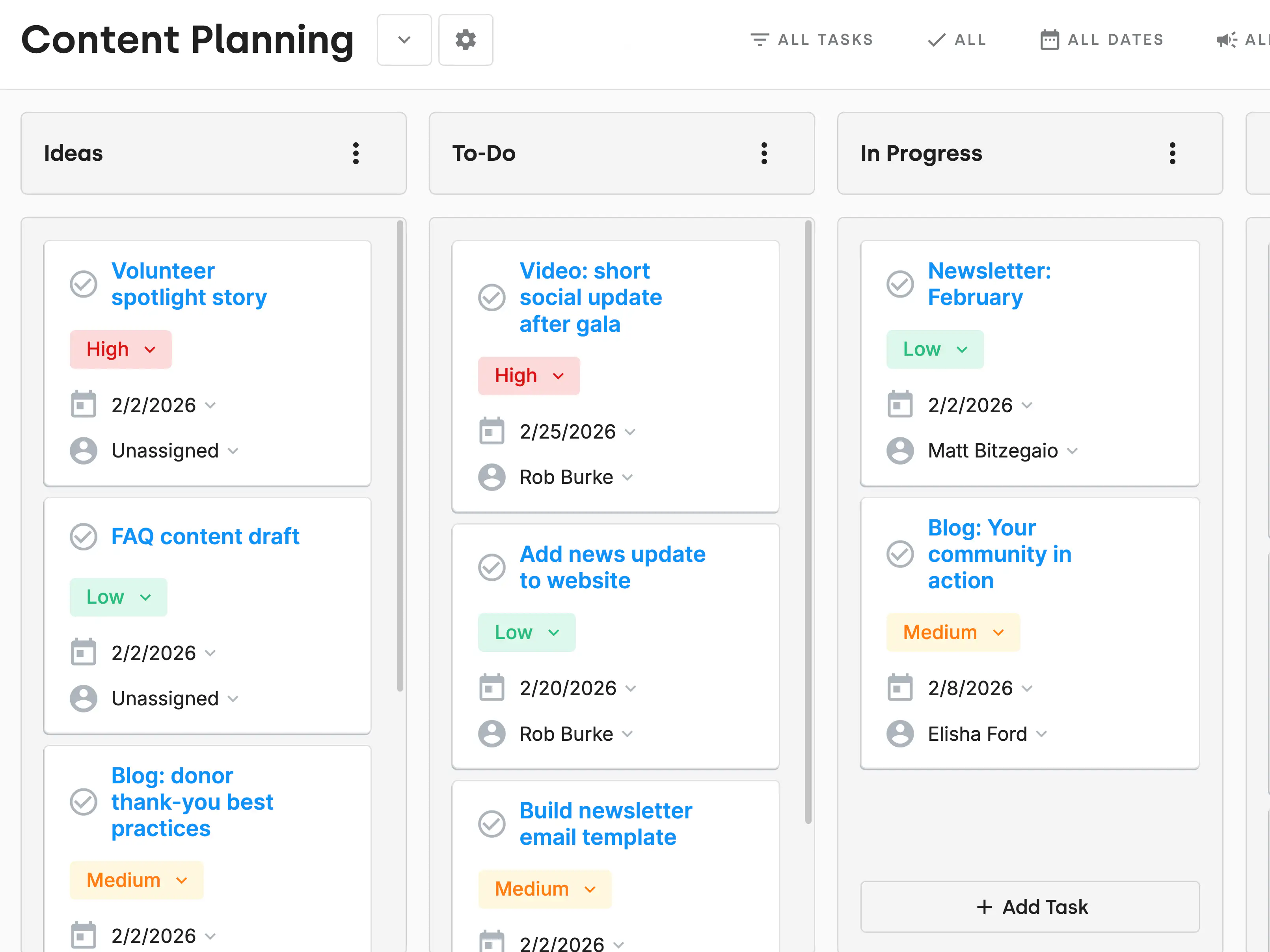
Contacts and activities carry an owner, and that owner assignment drives most of what a person sees day to day. Their Action Board shows the follow-up on the contacts they own. An Ask shows the person accountable for closing it. The Donor By Owner report tells a development director who is carrying which relationships.
Additional team members can be added as you need them.
Who can manage team members in DonorDock?
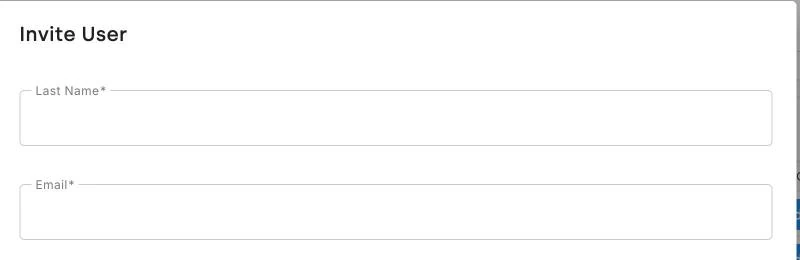
Only administrators can add, edit, or remove team members, or change their roles.
What user roles are available?
Five: Administrator (unrestricted access to records and settings), User (view and edit records, no settings access), Readonly (view records only), Marketing (send emails, manage templates and signup forms), and Non-Interactive (cannot log in).
Is there a role for someone who should only look, not edit?
Yes. Readonly can view records but cannot edit them or access settings — useful for board members and auditors.
What is a Non-Interactive user for?
An account that needs to exist without anyone logging into it, most often a generic address used as the sender on email campaigns. It does not count against your user limit.
Where do I manage my team?
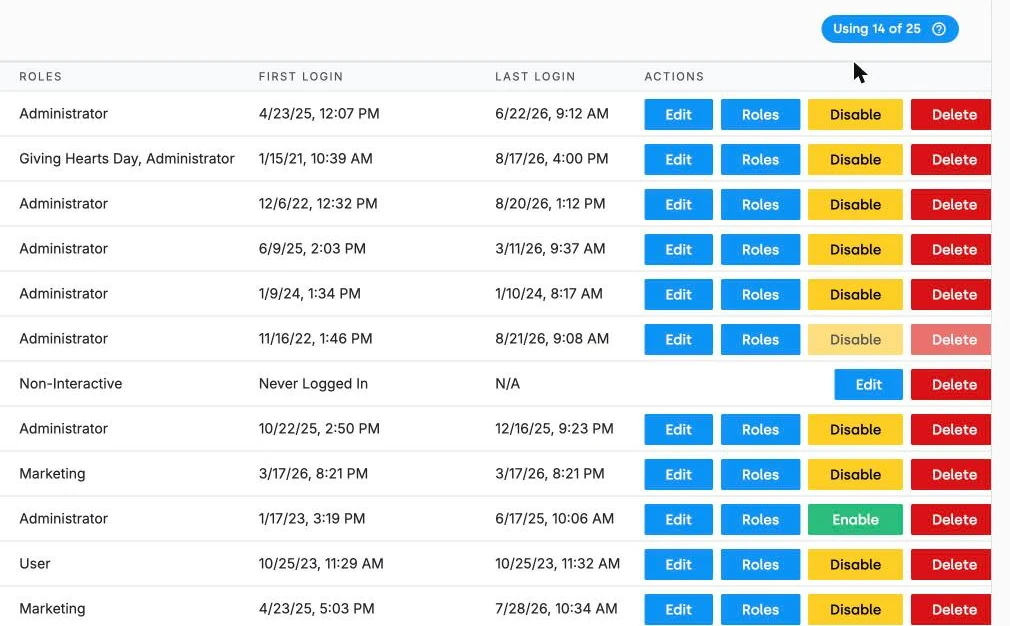
Under Settings, in Manage Your Team.
What happens when a staff member leaves?
Disable their account rather than deleting it. Access is cut off immediately while the record of their work — logged calls, gifts entered, asks owned — stays intact and attributed to them.
Can I see another team member's tasks?
Yes. Team members can view other team members' Action Boards, which makes coverage and oversight straightforward.
Does DonorDock support two-factor authentication?
Yes. 2FA is available for team accounts using a mobile number on the user profile.
How many users do I get?
Your plan includes a set number of team members and the team screen shows how many are in use. More can be added as you grow — see the pricing page for current figures.


.webp)