We use cookies to make your experience better. Learn more about how and why.

Smart Tools for Email: Four AI Helpers Inside the Editor

Smart Tools for Email

Smart Headings, Smart Text, Smart Images, and Smart Buttons — AI help where you are already writing.
Writing the appeal is the part that stalls. DonorDock's template editor has four AI tools built into it, so a blank email becomes a draft you can react to instead of a blank email.
A finished fall event email built in DonorDock's template editor, with a branded header, event details, an RSVP button, body copy, and a sponsorship call to action at the bottom.
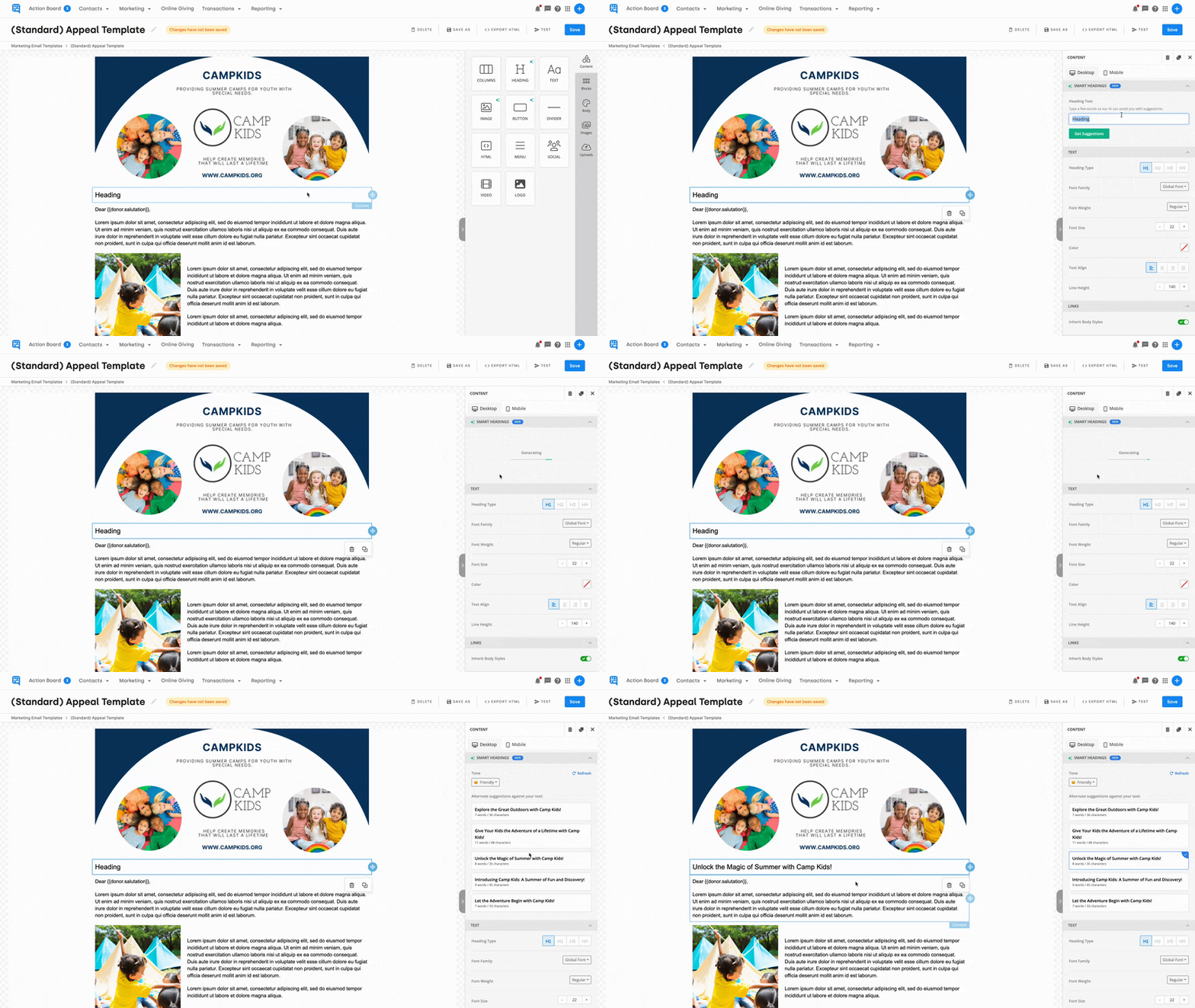
The DonorDock template editor with a branded appeal template on the canvas and the content block palette on the right — columns, heading, text, image, button, divider, HTML, menu, social, video, and logo — while a heading is edited in place.

Smart Headings

Type a rough phrase, the way you would say it out loud, and get alternative wordings in different tones. Useful when you know what the section is about and cannot decide whether it should sound warm, urgent, or plain.

Smart Text

The workhorse of the four. Smart Text will fix spelling and grammar, expand a sentence into a paragraph, summarize a long paragraph down, rephrase something that is not landing, and shift the tone between Friendly and Formal.

Smart Images

Describe an image in words and get up to four AI-generated options. Save the ones you like to your image library so they are available for future campaigns, and apply the same effects and settings you would use on any uploaded image.

Smart Buttons

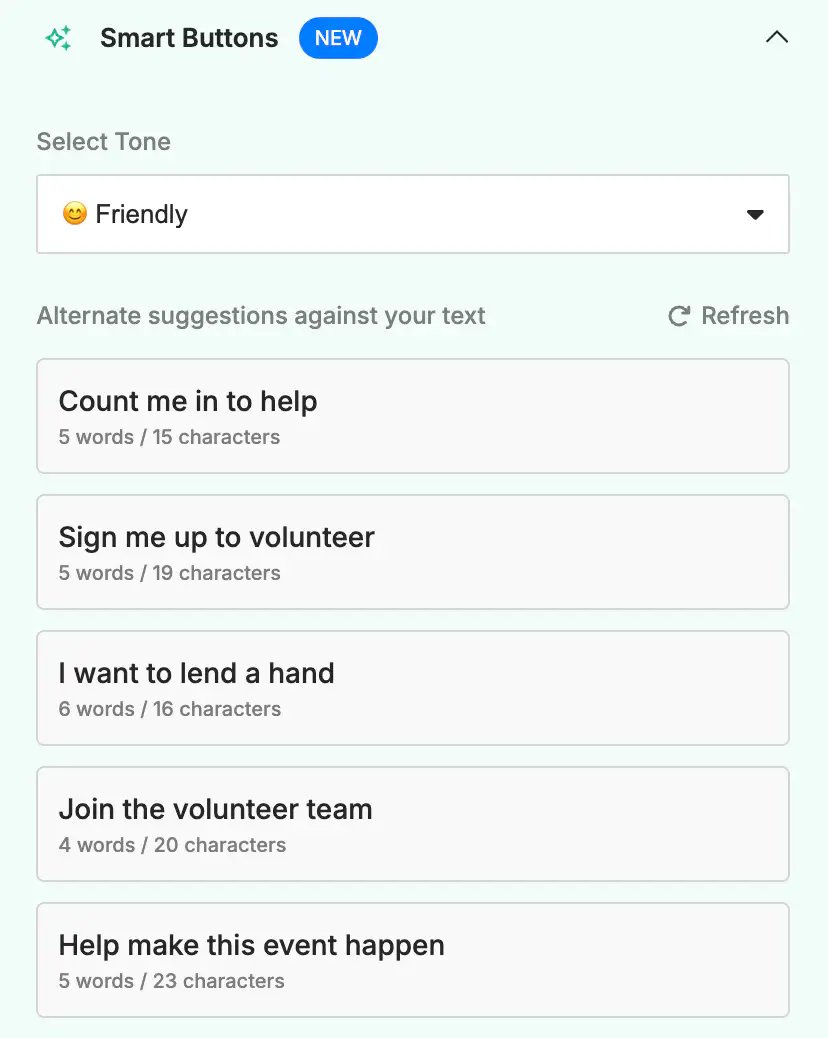
Alternative language options for your calls to action, while you keep full control of the button's formatting, content, and configuration. "Donate now" is not always the right ask, and this is a fast way to try five versions of it.

Where these live

All four sit inside the template editor, which means they work on email templates and print templates alike — the appeal letter as much as the newsletter. Whatever you produce becomes a saved template, so an AI-assisted draft you liked is reusable rather than one-off.

Smart Tools and Otto

Smart Tools help you write. Otto, DonorDock's AI assistant, works on your data, surfacing which donors need attention through Smart Nudges and helping with the thinking rather than the wording. Different jobs, same idea: get the small stuff off your plate so the relationship work gets your attention.
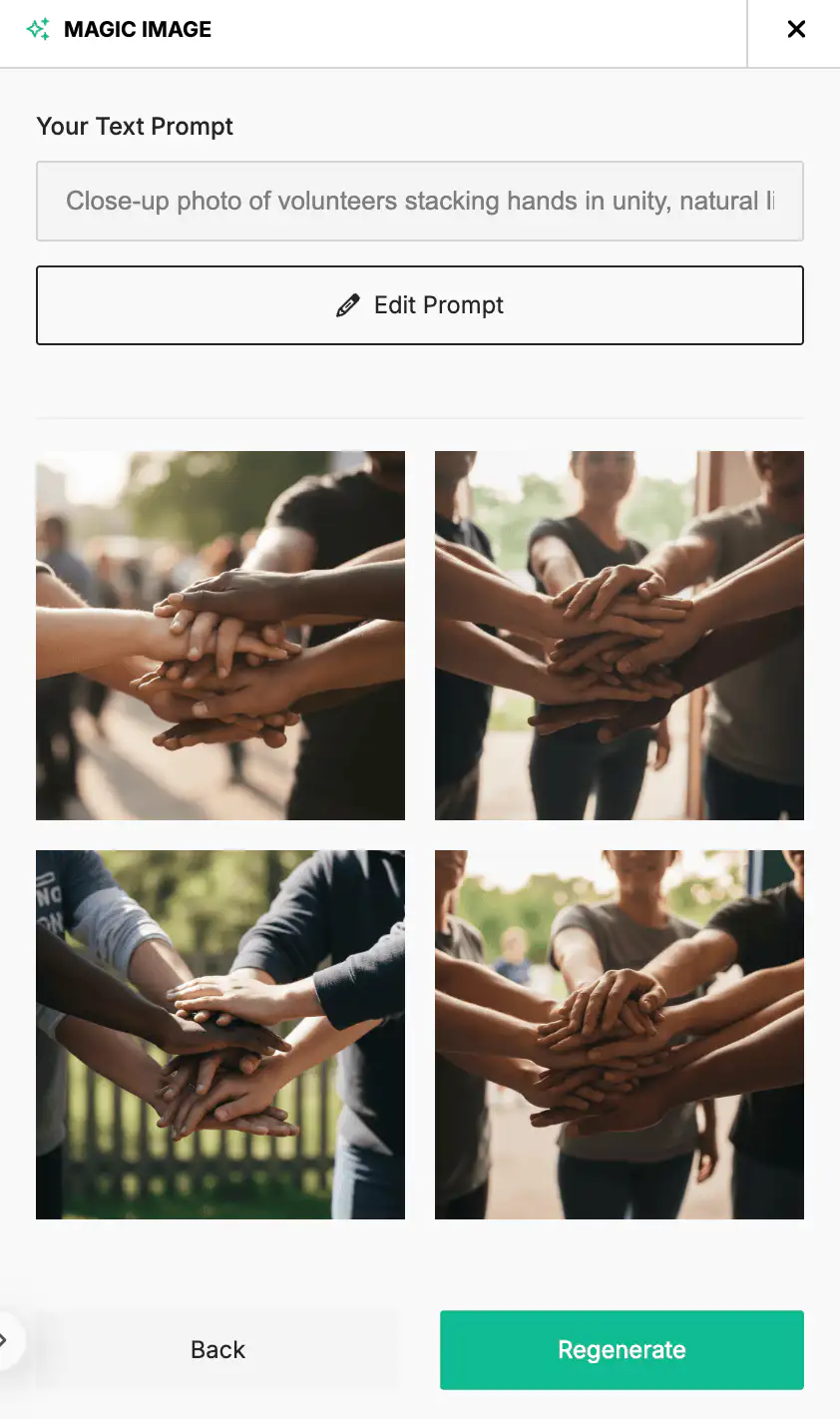
The Smart Images dialog in DonorDock: a text prompt describing volunteers stacking hands, four generated photo options below it, and buttons to edit the prompt or regenerate the set.
The DonorDock template editor with a branded appeal template on the canvas and the content block palette on the right — columns, heading, text, image, button, divider, HTML, menu, social, video, and logo — while a heading is edited in place.

Frequently Asked Questions

What AI features does DonorDock's template editor include?
Four: Smart Headings for alternative headline wording and tone, Smart Text for grammar, expansion, summarizing, rephrasing and tone, Smart Images for generating images from a description, and Smart Buttons for call-to-action wording.

Can DonorDock generate images?
Yes. Smart Images creates up to four AI images from a text description, and you can save them to your image library for reuse.

Can it change the tone of my writing?
Yes. Smart Text shifts text between Friendly and Formal tones, and can also expand, summarize, or rephrase.

Does it write the whole email for me?
It helps with headings, body text, images, and button copy inside the editor. You stay in control of the message.

Can AI features be turned off?
Yes. AI features in DonorDock can be disabled if your organization prefers not to use them.

How is this different from Otto?
Smart Tools help you write content in the editor. Otto is DonorDock's AI assistant working on your donor data, including Smart Nudges.

The Smart Images dialog in DonorDock: a text prompt describing volunteers stacking hands, four generated photo options below it, and buttons to edit the prompt or regenerate the set.
The DonorDock template editor with a branded appeal template on the canvas and the content block palette on the right — columns, heading, text, image, button, divider, HTML, menu, social, video, and logo — while a heading is edited in place.
The Smart Images dialog in DonorDock: a text prompt describing volunteers stacking hands, four generated photo options below it, and buttons to edit the prompt or regenerate the set.
User ratingUser ratingUser ratingUser ratingUser rating
G2 rating badge in yellow
Trusted by 7,600+ users

It's nice to have things that just work and it's a simple process to get it to work. And that's what DonorDock is.

Shelly Maes
Executive Director, Southwest West Central Service Cooperative

You'll believe it when you see it.

Schedule a demo and see why 7,200+ people trust DonorDock for their CRM.
Integration iconIntegration iconIntegration iconIntegration iconIntegration iconIntegration iconIntegration iconIntegration icon

Get more value from your tools

Connect your tools, connect your teams. With over 100 apps already available in our directory, your team’s favorite tools are just a click away.

Start building meaningful donor relationships today.

Your fundraising in one place.
Donor Dock-Shapes1-06